
Family lists that work like tables
A packing list needs sections. A home upkeep list needs the next date and who does it. A gift list needs who it is for. InVenn's lists are tables with the columns you choose, named sections and dates that can repeat and show up on the calendar, shared with the family on every phone and tablet.
Columns
Every list is a table, with the columns you choose
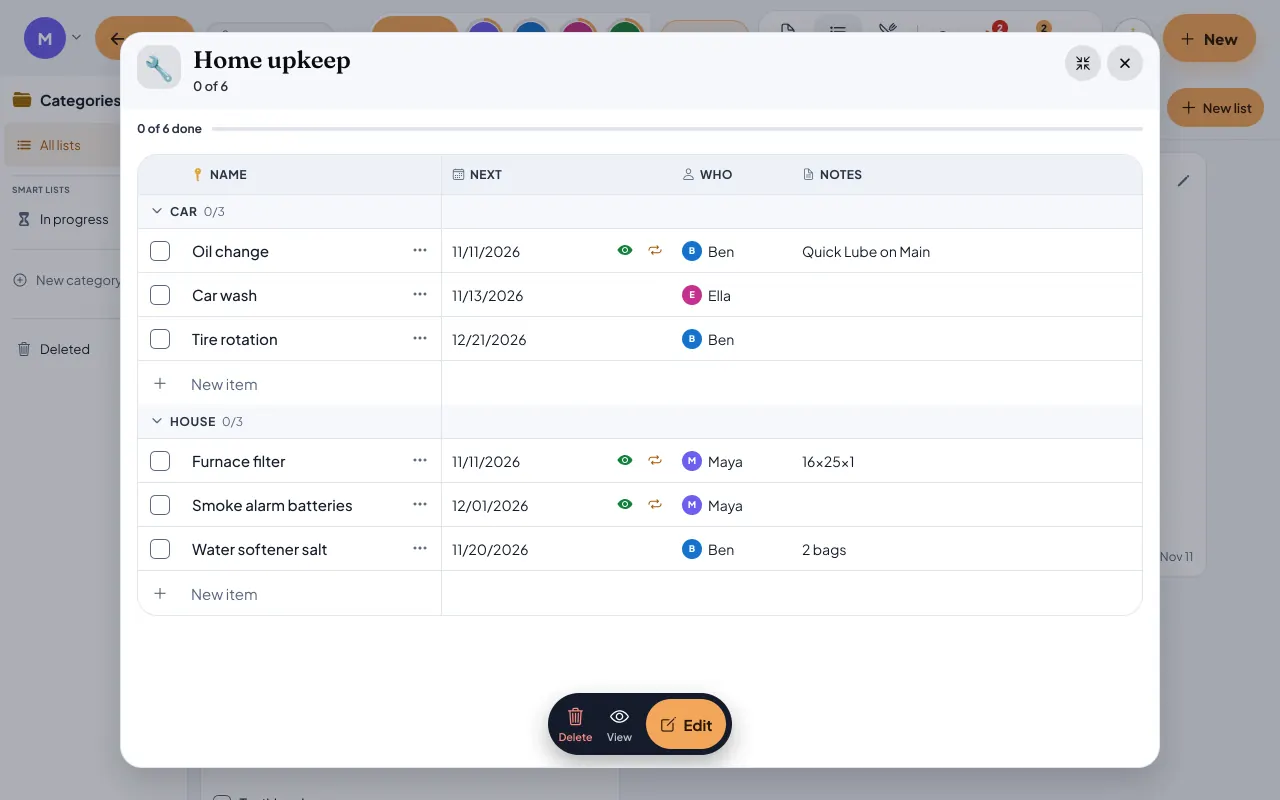
A list opens as a table with a header: the Name, your columns and a "+". Quantity, Who, Due and Notes are built in. For anything else, add your own: text, a number, a choice with colors, yes or no, a person, a date, a link or a phone number. Type the name, pick what kind of column it is, and you are done.
A column is as wide as its name needs, no wider, and you can drag its edge to make it wider or narrower. Each column can be aligned left, center or right. The first column is the main column: its values name the items in To-dos, on the calendar and in search, and you can make any other column the main one.
- Eight kinds of column, and as many as you need
- Rename, move, hide or delete a column from its menu
- Quantity and Who built in, for shopping and chores
Sections, and quick ways to fill a list
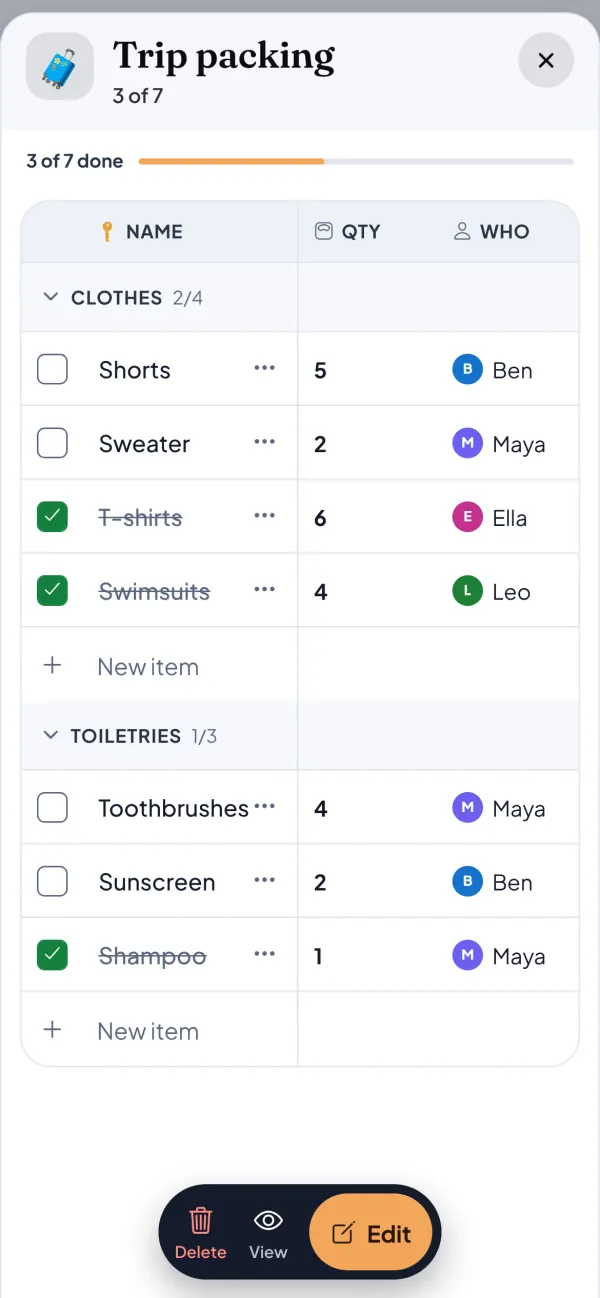
Sections are named rows that group items: Clothes and Toiletries in a packing list, Warm-up and Main set in a workout. A new list starts with one called Items. Each section has its own "+ New item", and its menu renames it, moves it up or down, or deletes it, keeping or deleting its items. Templates such as Workout Plan, Travel and Cleaning come with real sections, and "+ Add section" sits under the table.
Filling a list is fast. Press Enter and the next item starts right below. Paste several lines and each becomes an item. Tab makes a sub-item, and Backspace on an empty item removes it. Grab an item anywhere to drag it (on a touch screen, hold it a moment first), or move it with Alt and the arrow keys. Long names and notes wrap instead of being cut off.
An item's menu starts with Move to section, and has Move to another list and Copy to another list. Undo takes back a delete, a move or a copy. Sort a list by its name, by any column or in your own order, group it by section or by a column, or show only one person's items.
Dates
List dates that show up on the calendar
A Date column takes a typed date or one picked from a small calendar, in the format you choose: MM/DD/YYYY, DD/MM/YYYY, DD.MM.YYYY, YYYY-MM-DD or one of four written ones such as Oct 27, 2026. New dates start as MM/DD/YYYY (DD.MM.YYYY in Russian).
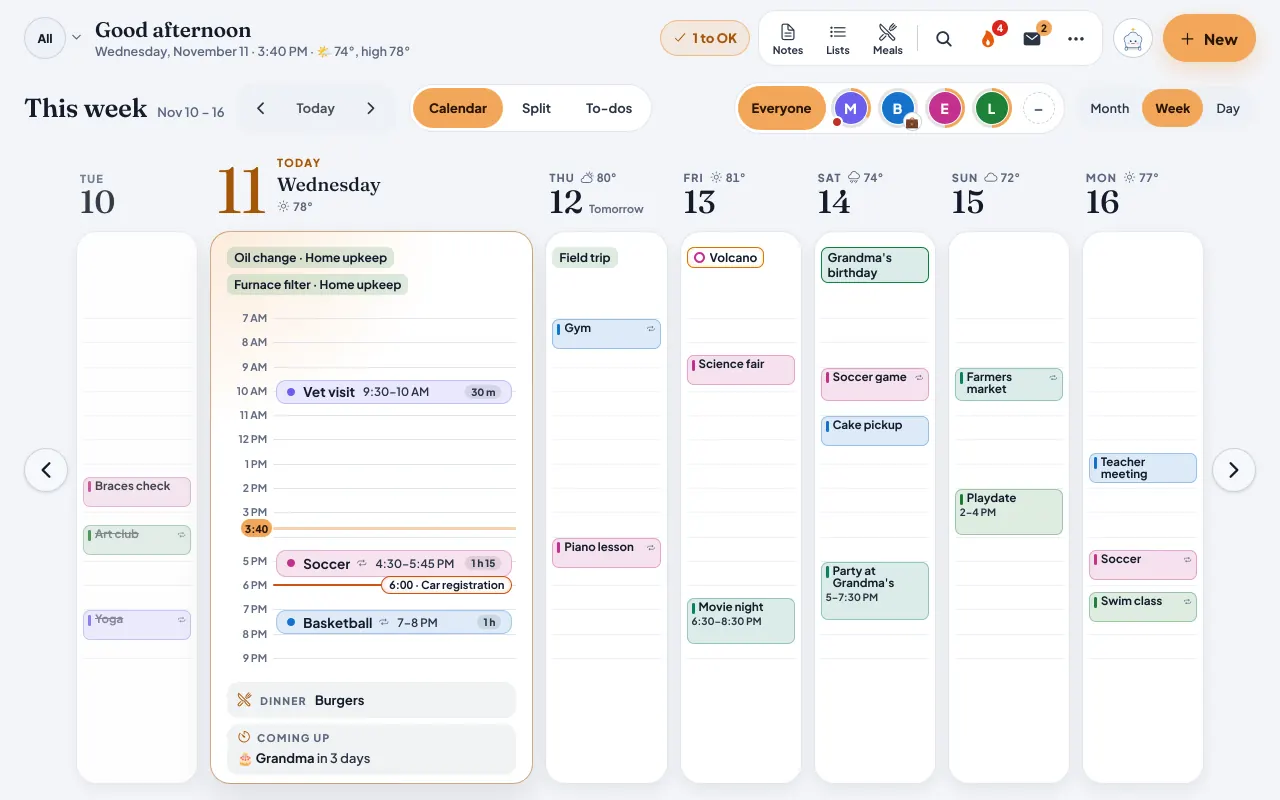
Next to a filled date is an eye. Open it and that entry shows on the calendar as a green all-day chip, and in To-dos on its day. Tick it there and it is ticked in the list. Open the repeat button beside it and the date can repeat every week, month or year: the list shows the next date that is not done, the calendar shows the repeats ahead, and ticking marks that one done. It is made for the furnace filter, the library books, the car's service.
- A date that repeats every week, month or year
- A green chip on the calendar, a row in To-dos
- Tick it anywhere and it is ticked everywhere
Ideas
What families keep in lists
Home upkeep
The oil change, the furnace filter, the smoke alarms: who does it and when it's next, with a date that repeats. Bills and subscriptions have their own place in Budget.
Packing list
Sections for Clothes and Toiletries, a quantity column, and a Who column so each person packs their own.
Gift ideas
The gift, who it is for, a link, and a yes or no for bought.
School supplies
One list a kid can tick off, with quantities and a due date.
Movie night picks
A choice column with colors for watched, next and maybe, and a person column for who picked.
Workout plan
A template with real sections, and columns of your own for sets and weight.
Lists are a part of InVenn we keep improving, so a few things may change. See what's new for each update, and the groceries have their own page: the meal planner and grocery list.
Questions
Good to know
Can a list have columns, like a spreadsheet?
Yes. Every list is a table with a header (Name, your columns and a +) and any number of columns, on every screen. Columns can be text, number, a choice with colors, yes or no, a person, a date, a link or a phone number. It is a table for lists, not a spreadsheet: there are no formulas.
Can a list item appear on the calendar?
Yes. Next to a date in a Date column there is an eye. Open it and the entry shows on the calendar as a green all-day chip, and in To-dos on its day. Tick it there and it is ticked in the list. The date can repeat every week, month or year, which suits an oil change or the furnace filter.
What are sections?
Sections are named rows that group items, such as Clothes and Toiletries in a packing list. A new list starts with one called Items, which you can rename. Each section has its own "+ New item", and its menu renames it, moves it up or down, or deletes it, keeping or deleting its items.
How do I add many items quickly?
Press Enter to add the next item right below, or paste several lines and each line becomes an item. Tab turns an item into a sub-item, and Backspace on an empty item removes it. On a touch screen, hold an item a moment, then drag it.
Can I move an item to another list?
Yes. An item's menu has Move to section, Move to another list and Copy to another list, and Undo takes back a delete, a move or a copy.
Do lists work offline and on two devices at once?
Yes. Every device keeps its own copy and syncs when it is online. Columns, sections and items merge part by part, so a rename on one device and a tick on another both survive.
Get the app
Get your family's code
Free, and no waiting. Type your name and email: your code appears right away, with step-by-step instructions for every phone, tablet and computer. We email them to you too.
One code per family. We use your email only to send your code and instructions. Privacy policy