
A family wall calendar, on the tablet you already have
Put a spare tablet where everyone walks by and it becomes the Wall: everyone's day, in their own colour, big enough to read from across the kitchen. No new screen to buy, and no ads.
One calendar
Everyone's colour, one place
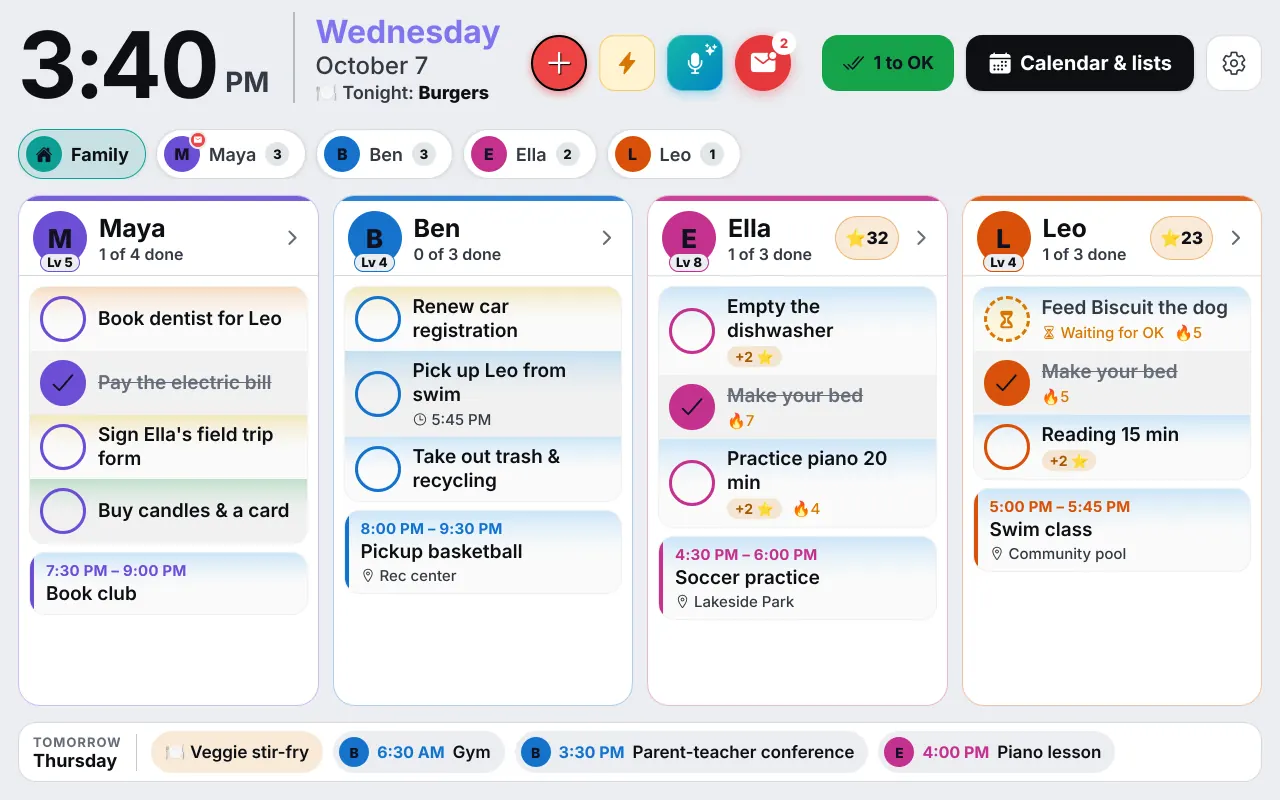
Soccer on Monday, the orthodontist on Wednesday, a birthday on Saturday. Each person gets a colour, so a glance at the week tells you who is where. Day, week and month views are all there, and a tap on any card opens the details.
Connect Google Calendar and it works both ways. Outlook calendars and calendar links from school or the team come in too, so you stop copying dates by hand.
- A colour for each person, readable at a distance
- Google Calendar both ways, Outlook and calendar links in
- Birthdays and anniversaries, with a reminder in time to buy a card
Made for the wall
Easy to read from across the room
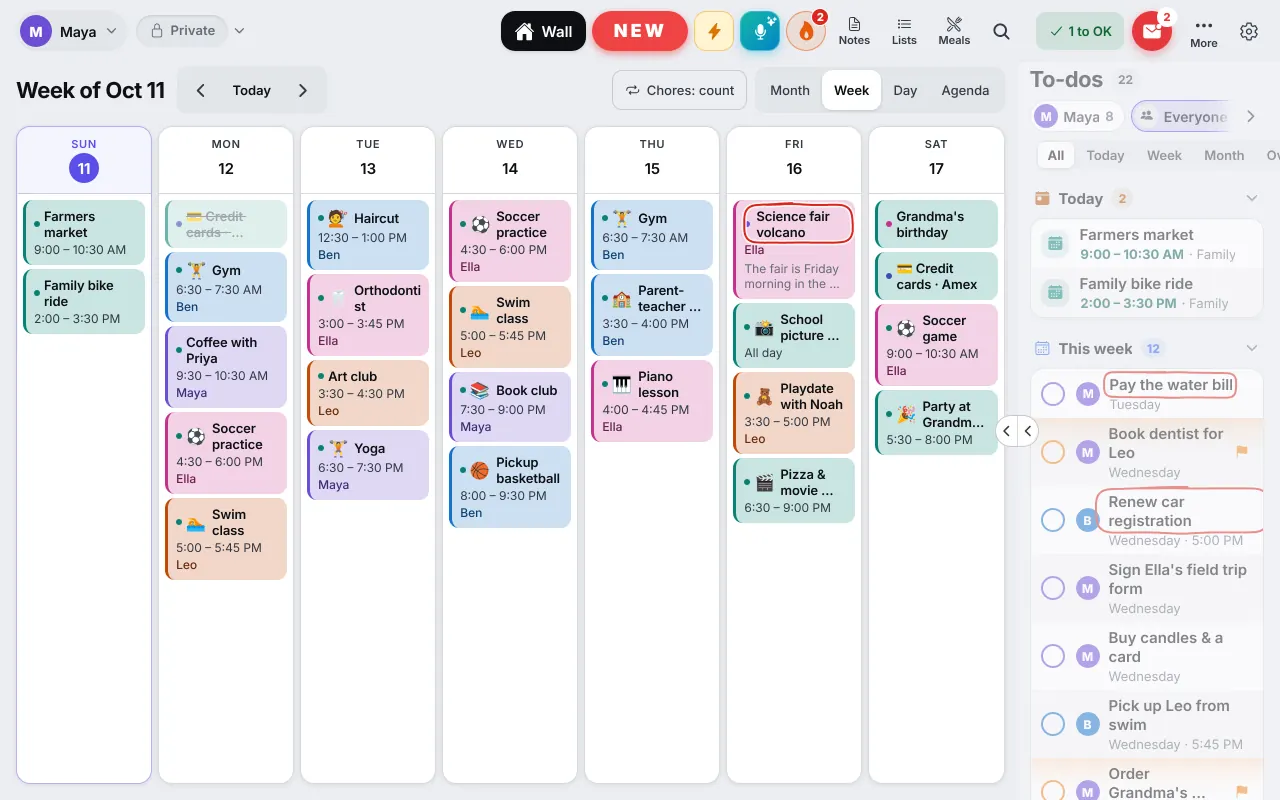
A wall calendar is only useful if you can read it from the stove. The Wall has a text size you choose, up to Extra large. Each person's card fits its rows and ends with a "+3 more" bar, so nothing is ever cut in half.
A grown-up can set a status for the day, such as "At work until 6 PM" or "On the way". It shows as a chip on their card on the Wall, and as a small badge on their tab, without saying what the work is. Away days say "Away until" with the date. Deadlines are circled in red, and the family's upcoming ones show as chips in the Tomorrow strip and the Coming up lane along the bottom. And when the tablet has not heard from the server for a while, it says when it last updated, so you never trust a stale screen.
- Text size: Large or Extra large
- A status on each card, like "At work until 6 PM"
- Dimmed at night, family photos when nobody is using it
More than a calendar
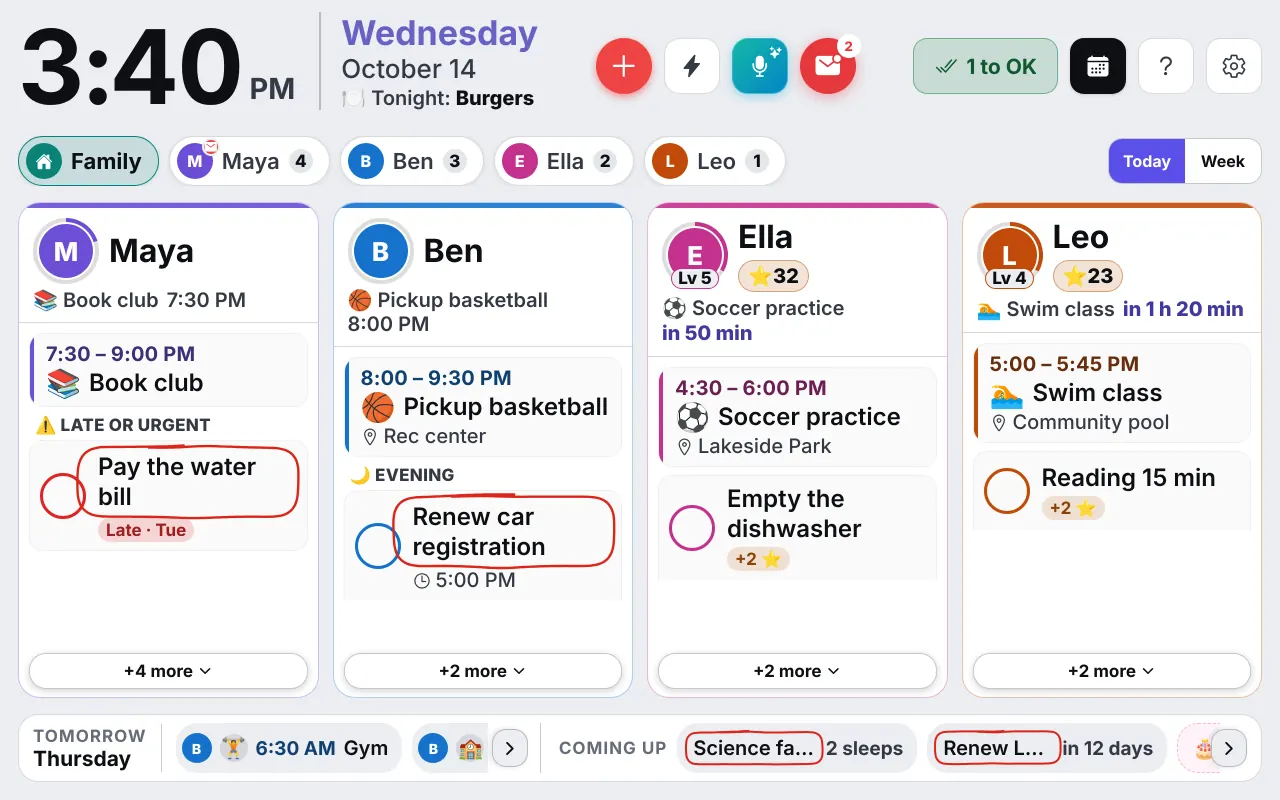
The Wall is the family's day, not only its appointments. Under each person's name you see their to-dos and chores for today, in the parts of the day: morning, afternoon, evening. The part it is now is marked, and a to-do whose time has gone says so.
Kids tap their own picture and tick off their chores with big buttons. Tonight's dinner sits at the top, and a Week view lays out each day's appointments, birthdays, to-dos and dinner. The weather is there too: now, today's high and low, and the days ahead.
A parent decides what appears. Private to-dos, Work things and secret surprise plans never show on the shared screen. If you would like to know how that works, read Work and school mode.
Set it up
Ready in about ten minutes
Get your code
Type your name and email below. Your family's code appears right away, with instructions for every device.
Add the family
On your phone, open app.invenn.app, enter the code, and add everyone with their colour. A parent keeps a PIN for parent mode.
Join the tablet
Join the tablet with a short code from your phone, choose "Shared family tablet", and stand it somewhere everyone passes.
Questions
Good to know
Which tablets work as a family wall calendar?
Almost any tablet with a modern browser: an old iPad, an Android tablet, even a spare laptop or a touchscreen monitor. InVenn runs in the browser and installs to the Home Screen, so it opens full screen.
Do I need to buy a special wall display?
No. A dedicated display is a fine product if you want one, but InVenn is built for the tablet you already have. A cheap stand or a wall mount is the only extra, and many families skip even that.
Can I use Google Calendar on the Wall?
Yes. Connect Google Calendar and appointments you make for yourself go into it, and changes there come back. Outlook calendars and calendar links from a school or a team come in too.
Will private appointments show on the kitchen wall?
No. Private and Work things stay on their owner's own devices, and the shared Wall shows only what belongs to the family.
Does the tablet have to stay on all night?
No. The Wall dims at night, and you choose the hours. Keep the tablet plugged in, and it is ready every morning.
Get the app
Get your family's code
Free during the beta, and no waiting. Type your name and email: your code appears right away, with step-by-step instructions for every phone, tablet and computer. We email them to you too.
One code per family. We use your email only to send your code and instructions. Privacy policy