
Modules: extras you turn on when you want them
InVenn stays simple until you ask for more. Modules are optional parts that a parent turns on in Settings → Modules, for the whole family or for one person. Two are ready today, Student and Budget, and more are coming soon.
Student
A school week for each student
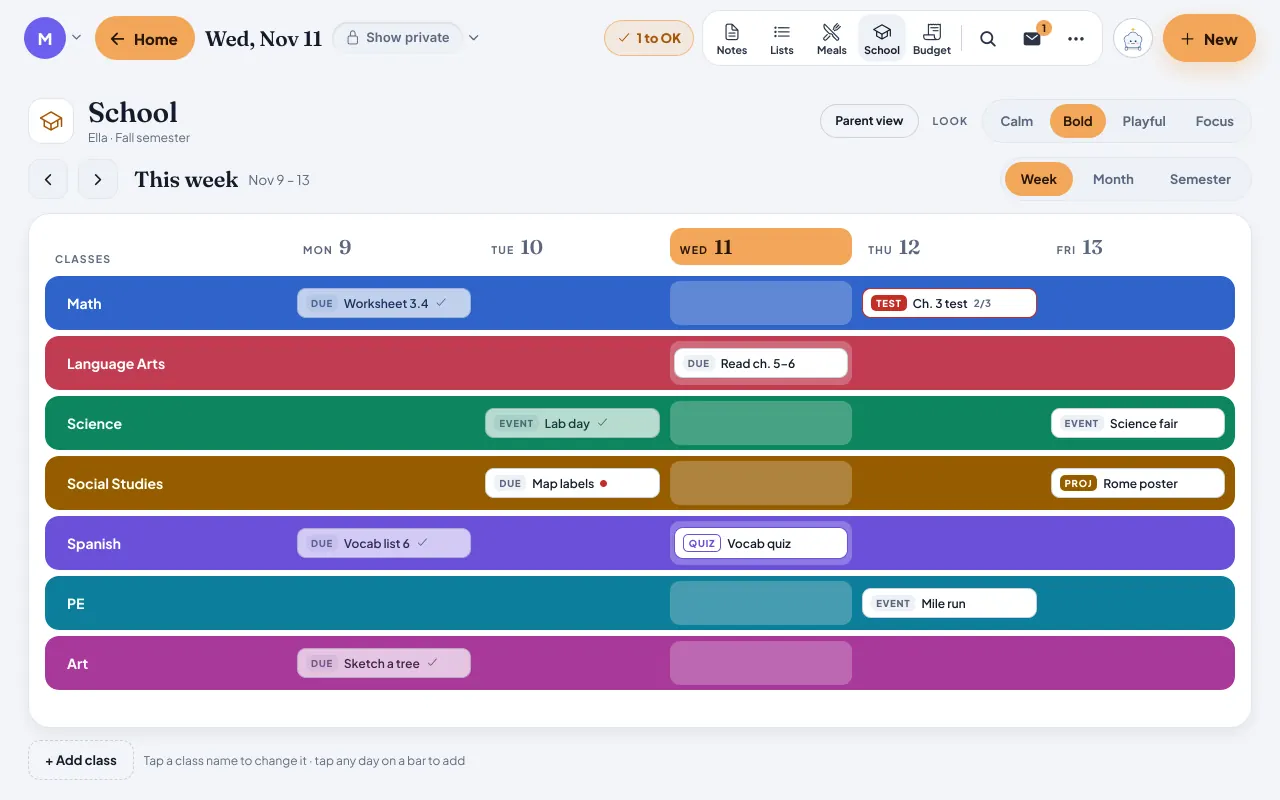
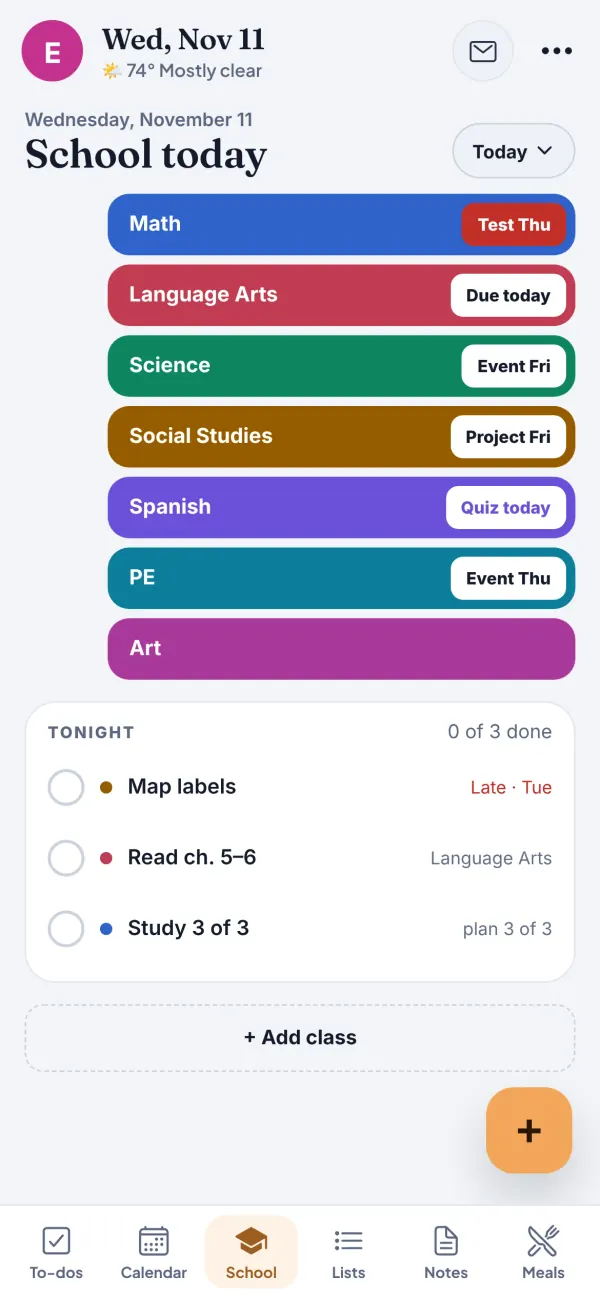
Turn on Student for a kid and a School screen appears, in the top bar on a tablet or computer and as a School tab on the phone. It shows the week with a colored bar for every class, seven to start, named in a few taps. Tap a day on a bar to add a test, a quiz, homework that is due, a project or an event. It lands on that bar, and in the calendar and the to-dos as usual.
A test or a quiz can make a study plan: study to-dos on the 2, 3 or 5 days before it, weakest topic first, and "Ask a parent to quiz me". The week also comes as a Month and a Semester, in four looks a kid can choose from: Calm, Bold, Playful and Focus. A reminder reaches the kid the evening before.
- A bar for each class, with tests, quizzes, homework, projects and events
- Study plans that put the study days on the calendar
- Week, Month and Semester, in four looks
- School today on the phone
For parents
A parent view of the school week
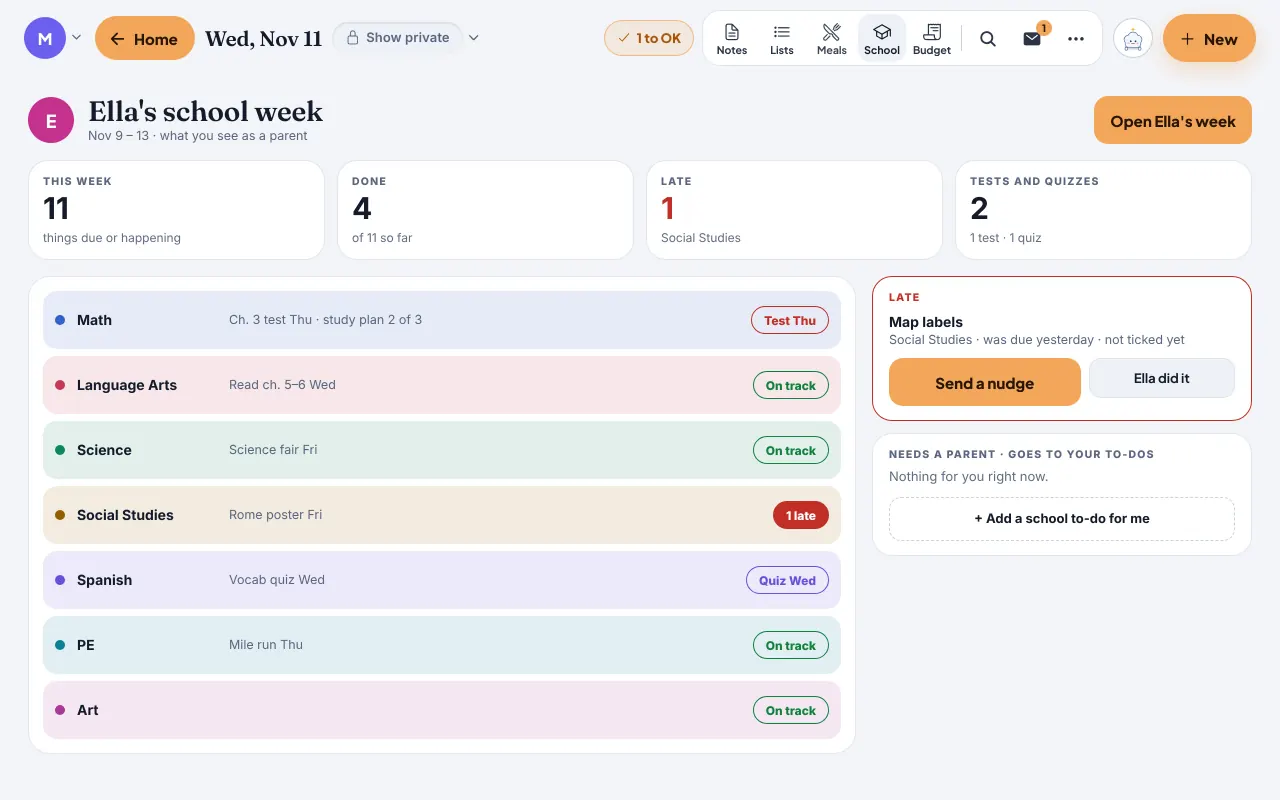
A parent who opens School sees a view of their own first: the week's numbers, what is late, and what needs a parent. A late assignment comes with Send a nudge and a button for "Ella did it", and "Open Ella's week" shows the week itself.
Student is separate from Work and School mode. That one keeps a kid's School area apart from home life; Student adds the classes, tests and study plans. Use either one or both.
- The week's numbers, and what is late
- A nudge, and a button for "did it"
- What needs a parent goes to the parent's to-dos
Budget
Bills and subscriptions, for parents only
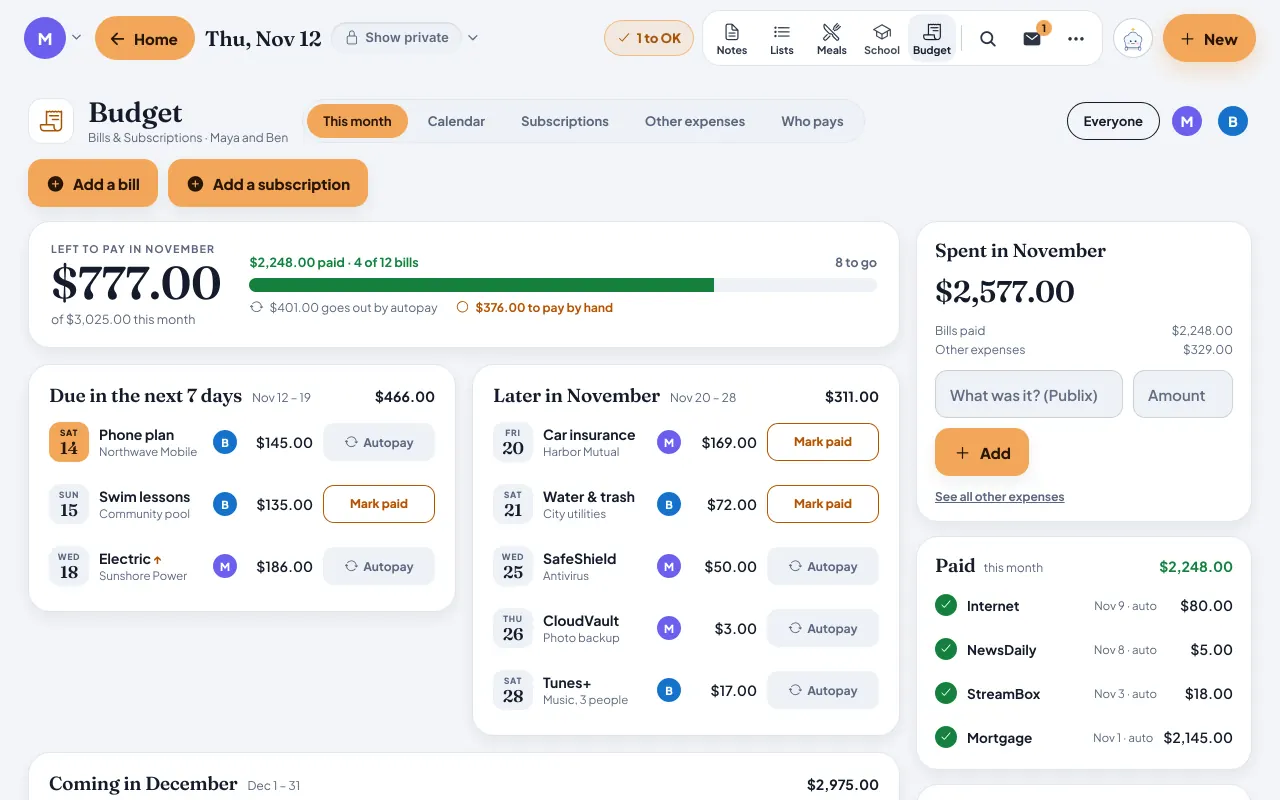
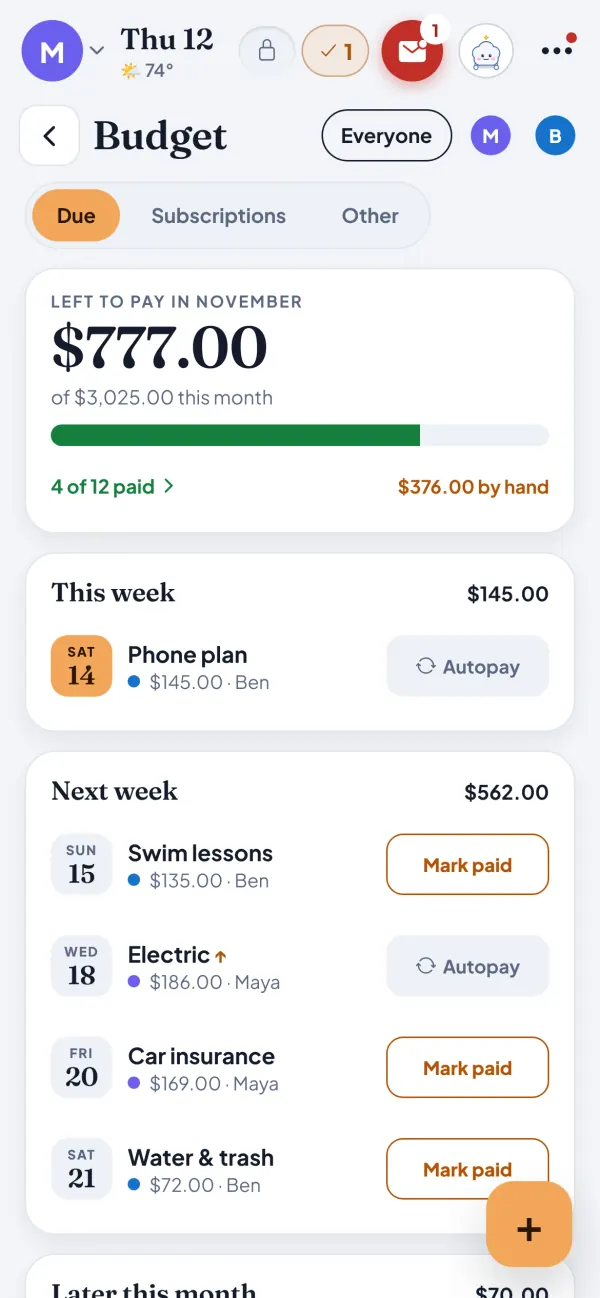
Budget keeps the family's bills and subscriptions in one place. This month shows what is left to pay, what is paid, what is on autopay and what is paid by hand, what is overdue and what is due next. Other expenses takes what you spend as it happens, on one line ("Publix 48"), and This month counts it with the bills. A price that went up gets an arrow. A Calendar shows the month's bills with each week's total, and Who pays shows each parent's share.
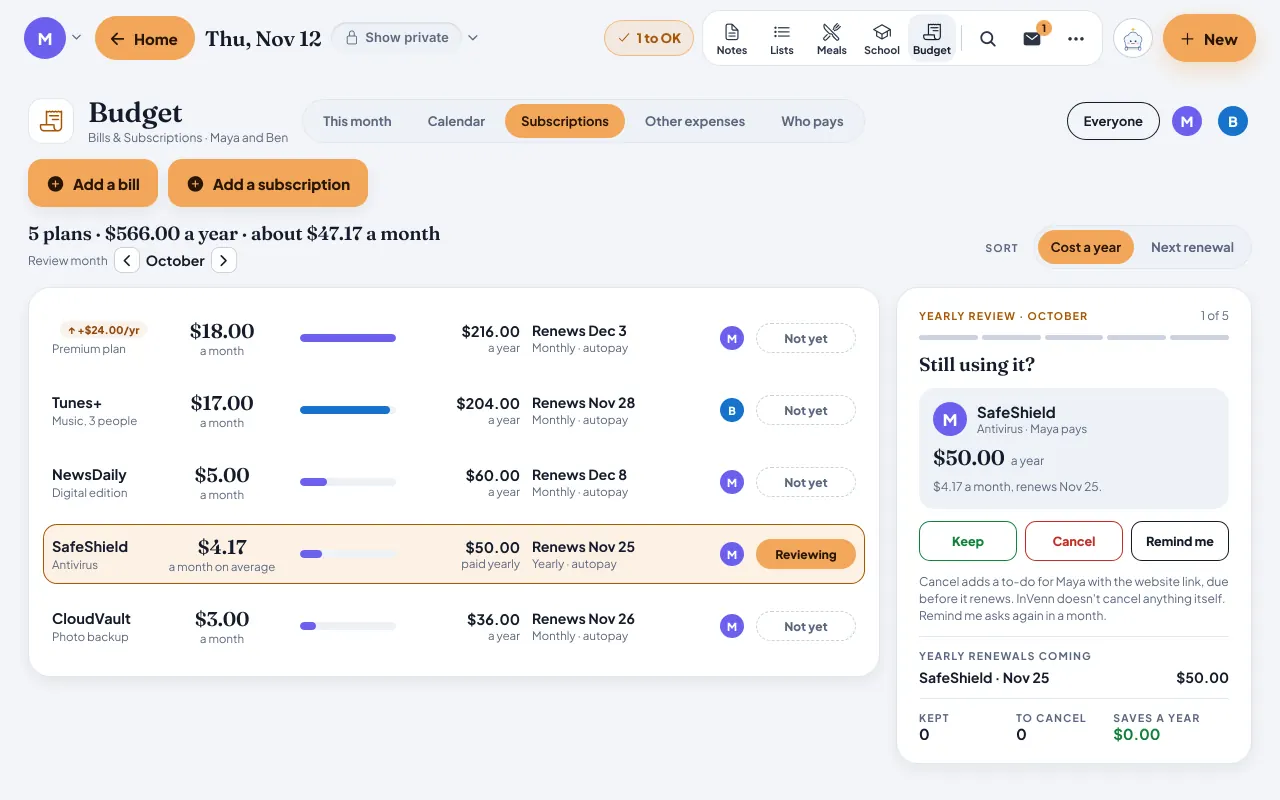
Subscriptions ranks them by what they cost a year and walks you through a yearly review: keep it, or cancel it with a to-do and the website to do it on, or ask again in a month.
- What is left to pay, and what is due next
- Subscriptions ranked by cost, with a yearly review
- A Calendar of the month's bills, and who pays
- On the phone, What is due, in the ⋯ menu
Budget is for parents, and it takes no numbers
Budget opens with a parent code. It closes by itself after 10 minutes untouched, or a minute after the app is away, and the family tablet locks it as soon as you leave. Kids never see it: there is no Budget button on their devices, and it is never sent to them. A budget can be for both parents, which is the default, or for one parent only, who then pays every bill.
InVenn never takes bank, card or routing numbers, or logins. A field that holds one is refused with a warning, and the server removes any that get through. Phone numbers and amounts are fine.
Set it up
Turn on a module in three steps
Open Settings → Modules
A parent opens Settings, then Modules. Each module has its own card.
Choose who it is for
Student is turned on for one person at a time. Budget is for both parents, or for one parent.
Use it, or turn it off
Turning a module off hides its things and never deletes them, so you can turn it on again later.
Questions
Good to know
Who can turn on a module?
A parent, in Settings → Modules. Student is turned on for one person at a time, and Budget for the whole family or for one parent.
Does turning a module off delete anything?
No. Turning a module off hides its things and never deletes them. Student's Delete school data asks first and puts the school things in the Archive.
Is Student the same as School mode?
No. School mode is the School side of the Private | Work switch: a kid's School area, with homework and School notebooks kept apart from chores. The Student module adds a School screen with a bar for each class, tests and study plans. You can use either one or both.
Can kids see Budget?
No. Budget is for parents. It asks for a parent code, closes by itself after 10 minutes untouched, and is never sent to a kid's devices.
Does Budget connect to my bank?
No. InVenn never takes account, card or routing numbers or logins. A field with one is refused with a warning, and the server removes any that get through. Amounts and phone numbers are fine.
Will there be more modules?
Yes, more are coming soon. Like Student and Budget, they will stay off until you turn them on.
Get the app
Get your family's code
Free, and no waiting. Type your name and email: your code appears right away, with step-by-step instructions for every phone, tablet and computer. We email them to you too.
One code per family. We use your email only to send your code and instructions. Privacy policy