
Work stays at work. School stays at school.
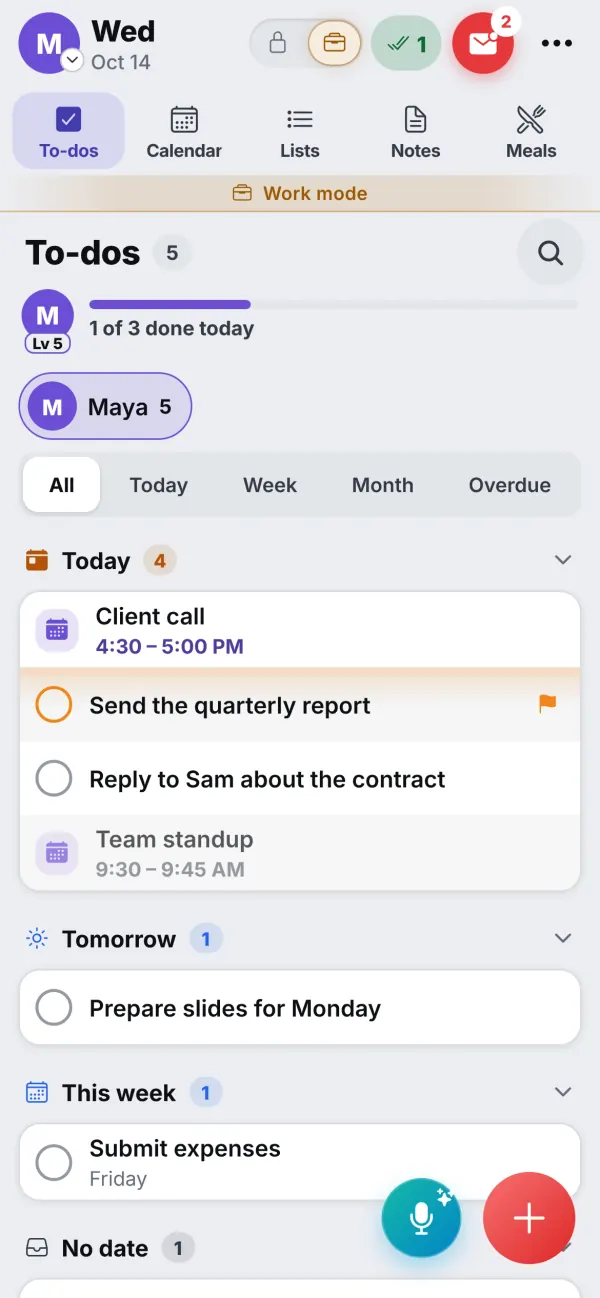
Give a grown-up a Work list and a kid a School list. One tap on Work shows only those things, under a slim "Work mode" band, and the family's chores step aside. The rest of the time, work stays out of everyone's way.
Private | Work
One switch next to your picture
On a shared family app, work to-dos get in the way: a quarterly report in the middle of the grocery list, a client call on the kitchen wall. The Private | Work switch next to your picture fixes it. Flip to Work and you see only the things marked Work: to-dos, appointments, notebooks and checklists. Your private things pause until you flip back.
A slim band tells you Work mode is on, so you never forget which side you are on. The switch has three looks to choose from in Settings, so it suits your device.
- Work mode shows only work things, in one tap
- A slim band says Work mode is on
- An Outlook work calendar can come in as Work
What the family sees, and what it doesn't
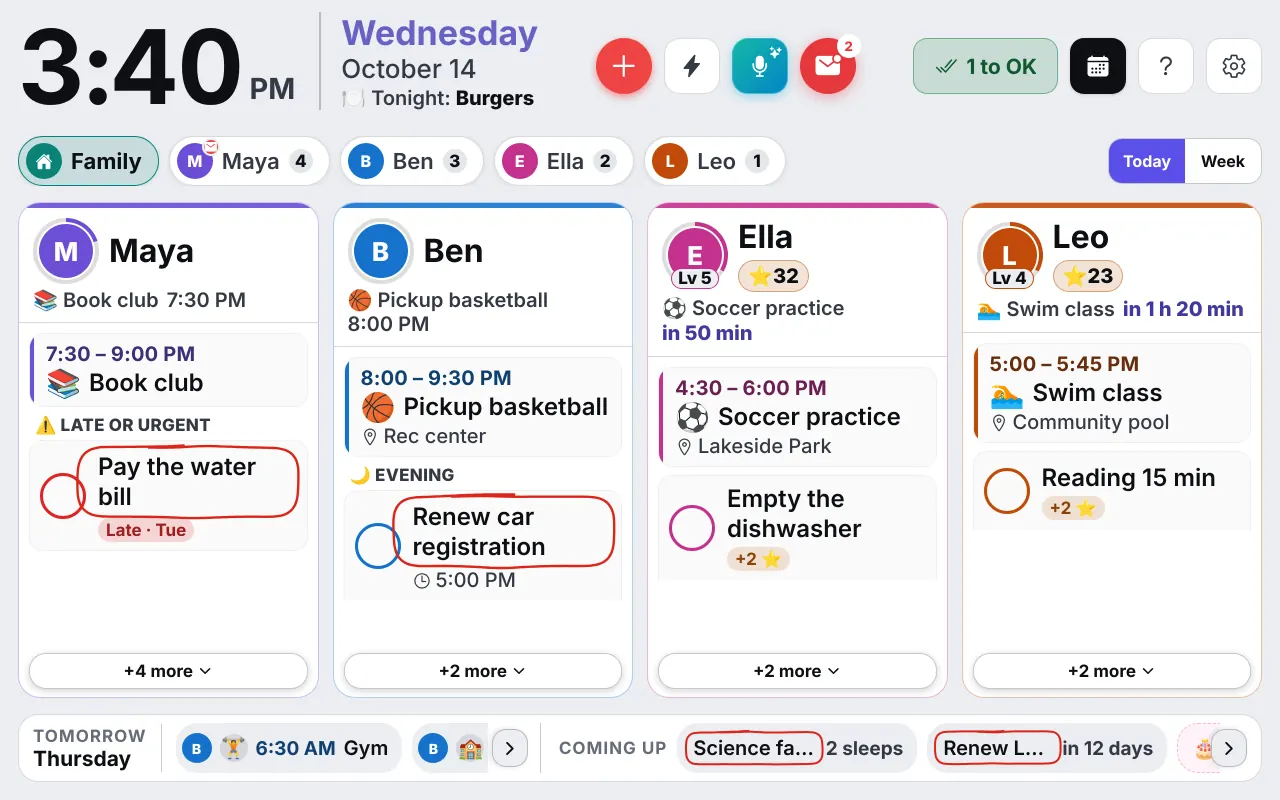
Work things never appear on the Wall or on anyone else's phone. A work appointment shows only on its owner's own devices, and a Work checklist, such as "Month-end at work", shows only in Work mode. The family does not see a to-do's title, a notebook or a calendar entry, even in a status.
If you do want the family to know that you are busy, set a status: "At work until 6 PM", "On call", "Traveling until Thursday", "On the way" or your own words in 28 characters. It appears as a neutral chip on your card on the Wall and as a small badge on your tab, and it hides itself when its time is up. A status that says "while Work mode is on" ends when you leave Work mode.
That is the point of the design: work stays private to you, and the family still knows when you are busy or away.
School
Homework has its own place
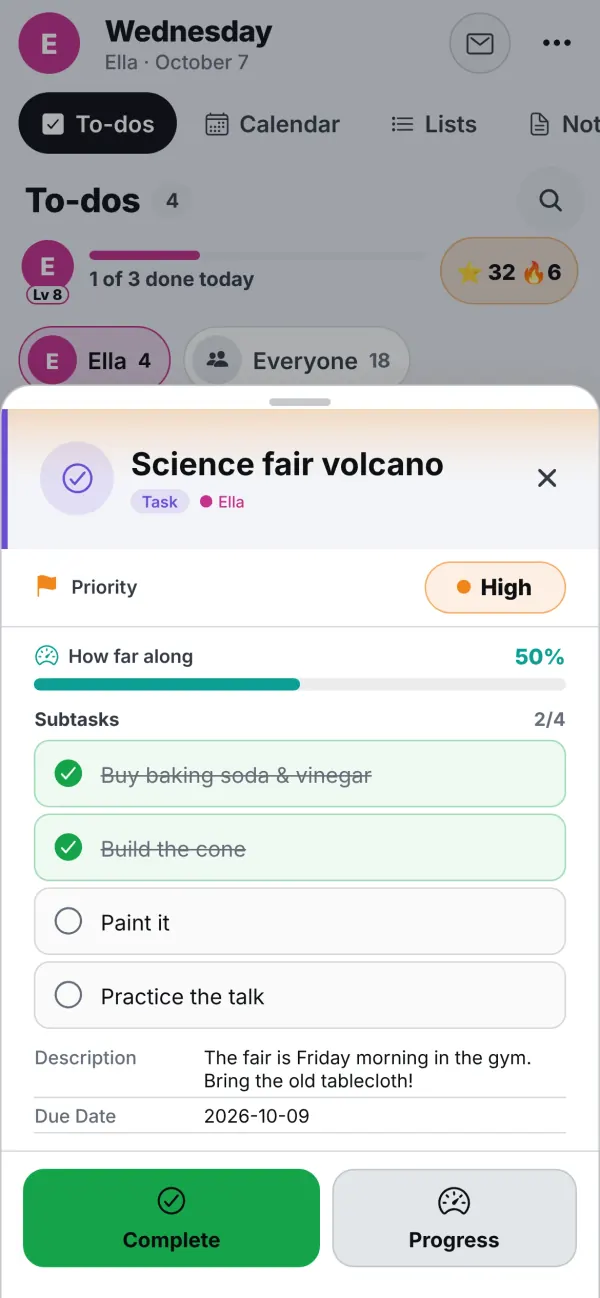
A kid can have a School list. On their own device, one tap on School shows homework, projects and their School notebooks, apart from chores and routines. A parent can set a deadline on a kid's homework, and it is circled in their own to-dos and on their card on the Wall.
The shared tablet keeps parent mode behind a PIN, and a kid's own phone gets only their own messages and things. Calm notifications keep the pings down: in a new family, a kid's finished chores and reward asks arrive together, not one by one.
- A School list and School notebooks for kids
- Deadlines on homework, circled in their to-dos and on the Wall
- Parent mode behind a PIN on the shared tablet
Set it up
Turn on Work mode in three steps
Turn on a Work list
A parent opens Settings → Family, finds the person, and turns their Work list on.
Mark things as Work
Mark a to-do, an appointment or a notebook as Work when you make it, or move it later.
Flip the switch
Tap Work next to your picture. Tap Private to come back to the family.
Questions
Good to know
Will my work things show on the kitchen Wall?
Never. Work to-dos, work appointments and Work notebooks show only on their owner's own devices, in Work mode. The Wall shows the family's things, and nothing from anyone's Work or private lists.
Can I keep my employer's Outlook calendar out of the family calendar?
Yes. An Outlook work calendar can come in as Work, so it shows only in your Work mode on your own devices.
What does the family see when I'm in Work mode?
Only what you choose to share. You can set a status such as 'At work until 6 PM'. It tells the family you are busy and says nothing about the work itself.
Do kids get this too?
Yes. A kid can have a School list, shown on their own phone or computer in the same way, so homework stays apart from chores.
Is it hard to turn on?
No. A parent turns a Work list on for a person in Settings → Family, and the Private | Work switch appears next to their picture.
Get the app
Get your family's code
Free during the beta, and no waiting. Type your name and email: your code appears right away, with step-by-step instructions for every phone, tablet and computer. We email them to you too.
One code per family. We use your email only to send your code and instructions. Privacy policy