
Guide
Turn an old tablet into a family wall calendar
A spare iPad or Android tablet makes a very good family calendar. This guide covers the stand, the charger, the setup and the first week, in about an hour of work spread over a weekend.
1. Pick the tablet and the spot
Any tablet that still gets browser updates will do. Larger is easier to read: 10 inches is comfortable, and 8 inches works if it sits at eye level. Look at where the family naturally pauses: beside the fridge, near the door where shoes come off, or by the coffee machine. The best spot is the one everyone passes twice a day.
Check three things before you commit: an outlet within reach, light that doesn't wash out the screen at breakfast, and a place that kids can reach if you want them to tick off their own chores.
2. Stand first, mount later
A stand, a shelf or a simple frame is enough to begin. A week of living with it tells you if the height and angle are right. Landscape suits a calendar, and portrait suits a list. When you are sure, a wall mount is a small job. Keep the charging cable tidy and out of small hands.
3. Power and sleep
Keep the tablet plugged in. In the tablet's own settings, set the screen to stay on while charging if it has the option, or set a long auto-lock. InVenn can also keep the screen awake while the app is open, and it dims at night: you choose the hours, so the kitchen isn't lit at 2 AM.
4. Install InVenn
- Get your family's code from the form on this page. It appears right away, and we email it with instructions.
- Start the family on your phone. Open app.invenn.app, tap New, enter the code, and add everyone with a colour. A parent sets a PIN.
- Open InVenn on the tablet in its browser, and add it to the Home Screen so it opens full screen.
- Join the tablet with a short code from your phone, and choose "Shared family tablet". It becomes the Wall.
5. Make it readable
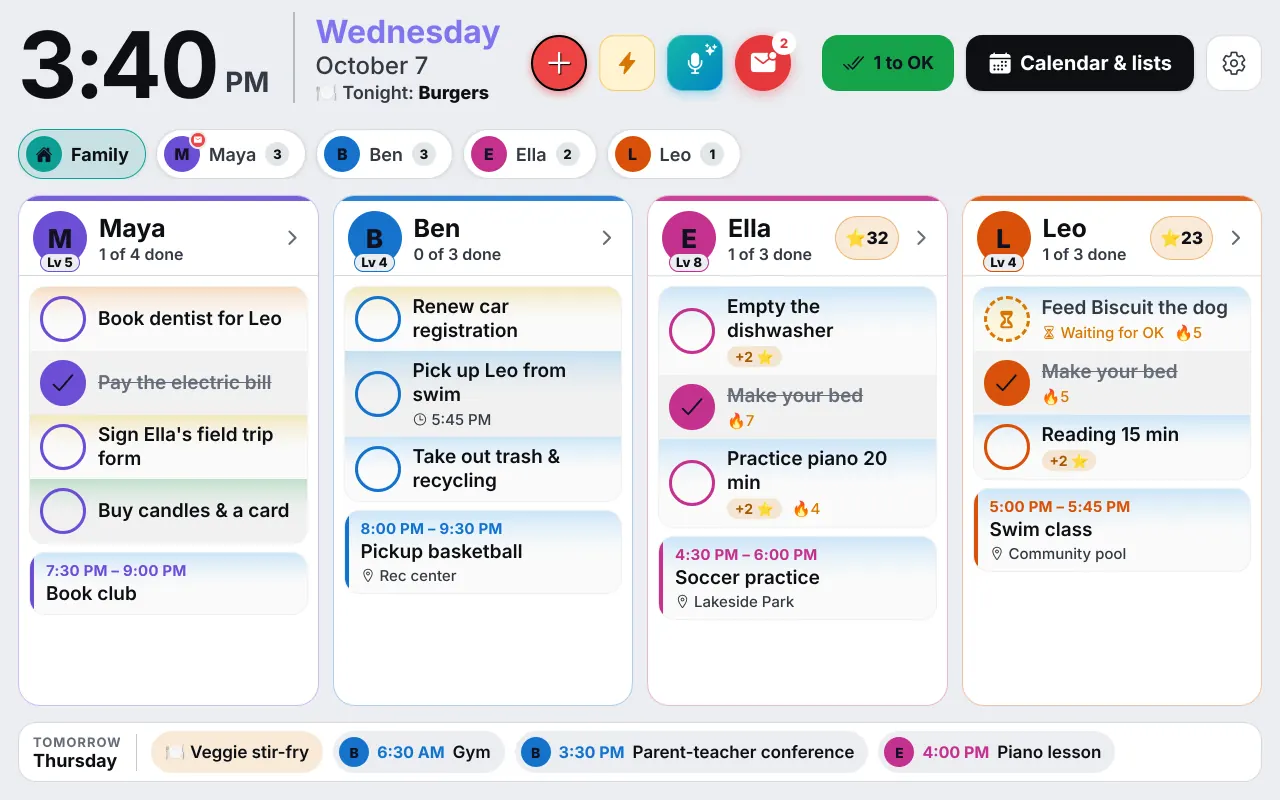
Set the text size to Large or Extra large in Settings. Each person's card then fits its rows and ends with a "+3 more" bar, so nothing is cut. Pick your town for the weather, and add family photos for when the Wall is idle. Parents' PINs keep parent mode out of small fingers.
Add the recurring things first: soccer on Monday and Wednesday, piano on Thursday, the trash on Tuesday. Then connect Google Calendar if you use it, and add calendar links from school or the team. Dates stop being copied by hand.
6. The first week
Give each kid two chores, not ten. Put tonight's dinner on the meal plan so it appears at the top of the Wall. Look at the screen on Sunday evening and decide what to change. If something is not working, send us feedback from Settings, or write to us. InVenn is in beta, and families shape what comes next.
Questions
Good to know
How old can the tablet be?
It needs a browser that is reasonably recent and enough memory to keep a web page open all day. If your tablet can no longer update its browser, try it for a day before you mount it.
Should I wall-mount it or use a stand?
Start with a stand or a shelf. You will learn where the family actually looks, and a stand costs little. Mount it once you are sure.
Will it wear out the battery if it is always plugged in?
Many families keep a spare tablet plugged in all day. Charging limits in the tablet's settings, where it has them, are worth turning on.
Get the app
Get your family's code
Free during the beta, and no waiting. Type your name and email: your code appears right away, with step-by-step instructions for every phone, tablet and computer. We email them to you too.
One code per family. We use your email only to send your code and instructions. Privacy policy